From the Fire TV home screen, search for the free “Downloader” app (orange icon) in the Amazon Appstore and install it.
Unlock Developer Options (one-time trick)
- Go to Settings → My Fire TV → About.
- Highlight your Fire TV Stick's name at the top and press the select button 7 times quickly — a message confirms Developer Options is unlocked.
- Go back to My Fire TV → Developer Options and turn on “Apps from Unknown Sources” (newer Fire OS: “Install unknown apps” → toggle ON for Downloader)
This is a standard one-time setting — it just lets Downloader install apps.
Open Downloader, enter the code 78522 and press Go to install IPTV Smarters.
Open IPTV Smarters and choose “Login with Xtream Codes API”.
Enter the Server URL, Username and Password we sent.
Save to finish.
From the Fire TV home screen, search for the free “Downloader” app (orange icon) in the Amazon Appstore and install it.
Unlock Developer Options (one-time trick)
- Go to Settings → My Fire TV → About.
- Highlight your Fire TV Stick's name at the top and press the select button 7 times quickly — a message confirms Developer Options is unlocked.
- Go back to My Fire TV → Developer Options and turn on “Apps from Unknown Sources” (newer Fire OS: “Install unknown apps” → toggle ON for Downloader).
This is a standard one-time setting — it just lets Downloader install apps.
Open Downloader, enter the code 272483 and press Go to install Tivimate.
Open tivimate and choose “Login with Xtream Codes API”.
Enter the Server URL, Username and Password we sent.
Save to finish.
If you're an Apple device user and want to enjoy the world of IPTV (Internet Protocol Television), you can do so with the IPTV Smarters Pro app. This user-friendly guide will walk you through the installation process to get IPTV up and running on your iPhone, iPad, or Apple TV.
Step 1: Download IPTV Smarters Pro from the App Store
:max_bytes(150000):strip_icc()/001-how-to-install-apps-on-apple-tv-1999693-155942874d764407b67aa5b7253bbff7.jpg "IPTV Setup Guide 2024 1")
- Open the App Store on your Apple device.
- Use the search bar to find "IPTV Smarters Pro."
- Locate the app in the search results.
- Tap the "Get" button to download and install the app.
Step 2: Installing IPTV Smarters Pro
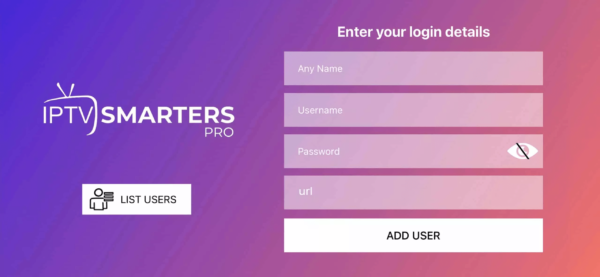
After the app is successfully downloaded, follow these steps:
- Open the IPTV Smarters Pro app by tapping its icon.
- You'll be prompted to accept the Terms of Use. Click "Accept" to continue.
- You will then need to enter your IPTV subscription details, including the username, password, and the URL provided by your IPTV service provider. Ensure this information is entered correctly.
Step 3: Exploring the Interface
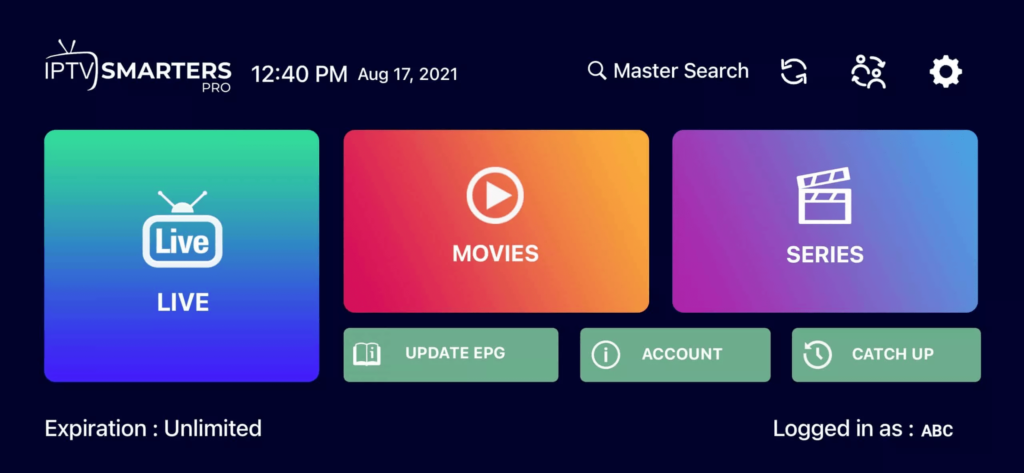
Once you've entered your IPTV details, you'll find yourself within the IPTV Smarters Pro interface, which is intuitive and easy to navigate. Here's a brief overview:
Live TV: Access your live TV channels.
Movies: Browse and watch on-demand movies.
Series: Explore TV series available through your IPTV service.
Catchup: If your service includes catch-up functionality, you can watch previously aired content.
EPG (Electronic Program Guide): See schedules for your channels.
Step 4: Customizing Your Experience
IPTV Smarters Pro allows you to personalize your channel list:
- Tap the three horizontal lines in the top-left corner.
- Go to "Settings."
- Select "Manage Channels."
- Here, you can arrange and customize your channel list according to your preferences.
Step 5: Enjoy IPTV on Your Apple Device
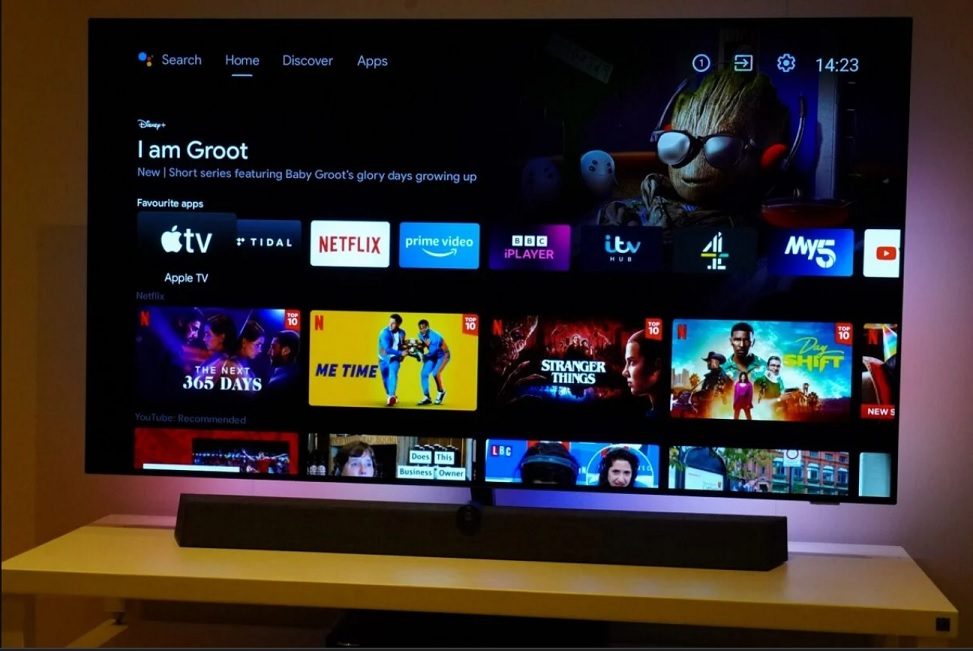
With IPTV Smarters Pro set up on your Apple device, you're ready to enjoy a diverse range of content. Navigate through your channels, explore on-demand shows and movies, and make the most of the app's features.
Pro Tip: For added privacy and security while streaming IPTV content on your Apple device, consider using a VPN.
Conclusion
Setting up IPTV on your Apple device using IPTV Smarters Pro is a straightforward process. Now you can immerse yourself in the world of IPTV entertainment on your iPhone, iPad, or Apple TV. Explore the channels, catch up on missed programs, and access on-demand content with ease.
- On your TV's app store, search for and install IBO Player Pro.
- 2Open IBO Player Pro — your MAC address appears on screen.
- 3Send your screenshot on WhatsApp
- 4We activate it for you — restart IBO Player Pro and start watching.
Are you looking to enjoy IPTV services on your computer running Windows or macOS? Look no further than IPTV Smarters Pro, a popular IPTV player that offers a user-friendly interface and seamless streaming experience. In this guide, we'll walk you through the simple steps to install and set up IPTV Smarters Pro on your PC or Mac.
Step 1: Visit the IPTV Smarters Pro Website
Start by opening your preferred web browser on your computer.
- Visit the IPTV Smarters Pro website by going to IPTV Smarters Pro.
Step 2: Download the App
Once on the website, navigate to the "Downloads" or "Download Now" section.
Choose the appropriate version of the app for your operating system. IPTV Smarters Pro provides dedicated apps for both Windows and macOS. Click on the download link for your chosen version.
Step 3: Install and Configure
After the download is complete, open the downloaded file to initiate the installation process.
Follow the on-screen instructions to install the IPTV Smarters Pro app on your computer.
Step 4: Enter Subscription Details
Launch the IPTV Smarters Pro app after installation.
Upon opening the app, you'll be prompted to enter your IPTV subscription details. This typically includes a username, password, and the URL provided by your IPTV service provider.
Enter this information accurately to access your IPTV content.
Step 5: Explore and Enjoy
With your subscription details entered, you now have access to your favorite live TV channels, on-demand content, and other features within the IPTV Smarters Pro app.
Take some time to explore the user-friendly interface, browse channels, and enjoy your IPTV service on your Windows or macOS computer.
Installing IPTV Smarters Pro on your computer opens up a world of entertainment possibilities, allowing you to watch your favorite content without the need for additional hardware. Whether you're running Windows or macOS, this versatile IPTV player is designed to enhance your viewing experience.
STB Emulator Setup Instructions:
- Download ‘STB Emulator’ from the Google Play Store here.
- Install and Load the ‘STB Emulator’ app and you will see your ‘MAC address’ on screen.
- Tap near the ‘Top right corner’ and then click ‘Settings’ – the 4th icon from the right.
- Tap ‘Profiles’.
- Tap ‘Test portal’ to modify the existing profile or ‘Add profile’ to start a new one.
- Tap ‘STB Model’.
- Tap ‘MAG 250’ or whichever STB you wish to emulate.
- Tap ‘Portal settings’.
- Enter your ‘Portal URL’ (Check your activation e-mail) and click OK.
- Now tap ‘Screen Resolution’.
- Choose ‘1280×720’ (You can choose higher with internet speed 16+ Mbps).
- Exit the app and restart.
- You will now see your channel list.
Troubleshooting STB Emulator
If you have any problems viewing the Channels please follow this recommended fix:
Restart your App, Device/Box, and Wi-Fi Router.
In case you are facing any issues, please contact our support team on WhatsApp and they will help you set the subscription in your APP.
- Go to: Settings—> System Settings —> Servers—>Portals
- Set Portal 1: IPTV
- Set Portal 1 URL ( see your E-mail )
- Set Portal 2 Name leave this empty add this only If you order the second subscription
- Set Portal 2 URL leave this empty add this only If you order the second subscription
- Save everything
- Reboot device
- After the box is restarted, wait until the TV screen shows the channels.
In case you are facing any issues, please contact our support team on WhatsApp and they will help you set the subscription in your APP.